
UnDuplicate


UnDuplicate overview
UnDuplicate is a user friendly, very fast duplicate file finder and remover. It lets you easily remove clutter and free up storage space from your devices.
UnDuplicate has really cool features such as:
- Scan several folders. Find duplicates in several folders, within the same scan.
- Scan criteria with presets. Easily indicate your desired search criteria by selecting a preset amongst a dozen ones.
- File type filtering. Quickly indicate the file types you want to scan (pictures, videos, music, documents or any desired file type).
- Smart selection. One-click selection of the duplicates to remove, based on their position, creation date/time, path length or location.
- Safe or permanent removal. Removed items can be moved to the recycle bin or permenently deleted, at your choice.
- Compare matched items. Compare a group of matched duplicates on a dedicated window with preview (currently of pictures only)
Current version: 1.2.0.0. Change log
UnDuplicate was built with simplicity, speed and functionality in mind. It was created for both regular and advanced uers. Simply indicate the root folder, optionally set the search criteria and start the scan. Once the scan completes, use the available functions to analyze and select the double files to delete, and hit the Delete checked button to actually remove the desired files.
UnDuplicate is in beta stage, please report any bugs you find to us, using our contact form. Thank you!
Please read the End User License Agreement for our software before using this program.
If you like this program and want to support its future development, you can donate by clicking the button below. Thanks in advance. Any amount is appreciated.
Tutorial content index:
Start a new scan
In order to start a new scan, simply press the Start new scan button. The Duplicate files scan window displayed below is shown, and asks you to indicate a folder to scan. Select, using the File Explorer dialog box, the directory that contains the duplicate files, and click Open.
Click the Browse button, and repeat the operation to add more folders to the scan.
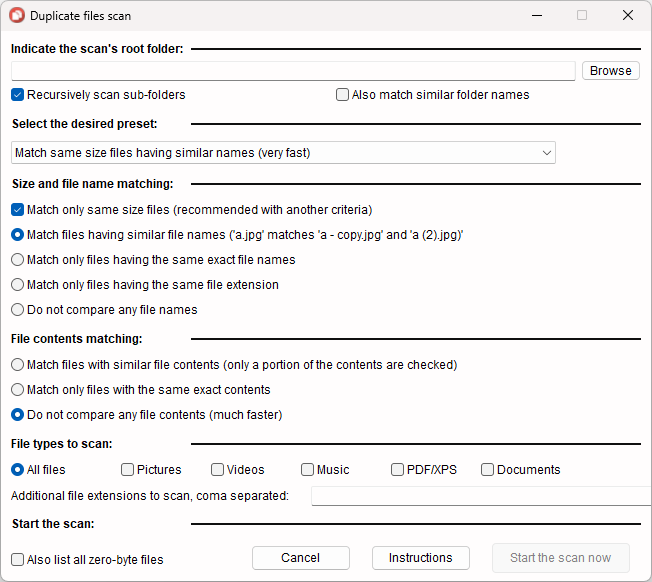
You can now select the desired preset, or manually change the matching criteria. This defines how files are classed as duplicates.
The search criteria is divided in three groups: Size and file name matching, File contents matching and File types to scan. Selecting a preset will check, in each group, the option that corresponds to the preset's text.
Size and file name matching
- Match only same size files - If you select this option, only files having the same size will match as duplicates. To avoid false positives, you can enable other matching criteria along with this one.
- Match files having similar file names - If you select this option, files with similar names will match. For example, a file named example.jpg will match a file named example - copy.jpg and also a file named example (2).jpg, and also a file named example (3).jpg, and so on.
- Match only files having the same exact file names - If you select this option, only files with the exact same name will match.
- Do not compare any file names file names - If you select this option, file name comparison is skipped.
File contents matching
- Match files with similar contents - If you select this option, UnDuplicate will compare only a portion of the file, currently 2MB in the beginning of the file and 2MB in the end, to ensure the file header is compared. This is much faster than comparing the entire file contents and is probably enough for most situations.
- Match only files with the same exact contents - Select this option if you prefer to compare the file contents entirely.
- Do not compare any file contents - This option disables comparing file contents altogether. Obviously, you need to enable other matching criteria as described above.
File types to scan
- Select All files if you want to find duplicates of any file type.
- Otherwise, tick one or more check boxes corresponding to the file types you want to scan : Pictures, Videos, Music, PDF/XPS and Documents.
- If the file type you wish to scan is not listed, or if you want to add more file types to scan, enter the additional file extensions to match in the text input field after Additional file extensions to scan, coma separated:. You don't need to write the dot. For example, enter html,css,js to search for HTML, CSS nad JavaScript duplicated files.
Uncheck Recursively scan sub6folders if you want to find duplicated only in the root folder and not its sub directories.
Check Also match similar folder names if you want to list identical names of sub-directories. As with similar file names, foldername will match foldername - copy and foldername (2), foldername (3) and so on.
Check Also list all zero-byte files if you want UnDuplicate to show the empty files found in a dedicated group, so you can compare them all together. By default, zero-byte files are not listed at all.
When ready, click Start the scan now, to begin your search for duplicate files. Depending on the number of files to scan, and the selected scan criteria, the whole scan can take from less than one second to several munutes. Be patient and wait for it to end.
If you decide that you don't want to perform the scan after all, click Cancel, or close this dialog box.
Whenever you want to read this tutorial section, click the Instructions button.
Find in the list

This feature lets you search the results list for a specific text string.
Simply type, in the text iput field, the desired text to search and press Enter or the Find next button. The first item containing the searched text is highlighted.
To highlight the next item containing the entered text, press the Find next button again or the F3 key until you get a message saying the end of the list was reached.
UnDuplicate searches for the text you've entered in any of the list's three columns.
Select items for removal
To bring up the selection menu, click the Select... button in the right pane. The menu is then displayed, like in the picture below.
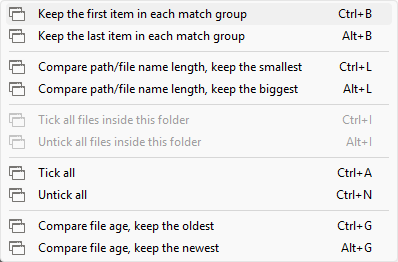
This feature is intended to help you select duplicate files to remove later, but leave the ones you want to keep unchecked.
Select the desired action to apply:
- Keep the first item in each match group - this will check all the items in the list, except for the first item in each match group.
- Keep the last item in each match group - this
will check all the items in the list, except for the last item
in each match group.
- Compare path/file name length, keep the smallest - this will check all the items in the list, except for one item in each group. In this case, the one that has the shortest file path, or the shortest file name.
- Compare path/file name length, keep the biggest -
this will check all the items in the list, except for one
item in each group. In this case, the one that has the
longest file path, or the longest file name.
- Tick all files inside this folder - this will check all the items in the list, that correspond to files residing in the same folder as the highlighted item.
- Untick all files inside this folder - this
will uncheck all the items in the list, that correspond to
files residing in the same folder as the highlighted item.
- Tick all - this will check all the items in the list.
- Untick all - this will uncheckcheck all the items
in the list.
- Compare file age, keep the oldest - this will check all the items in the list, except for one item in each group. In this case, the one that has been created first.
- Compare file age, keep the newest - this will check all the items in the list, except for one item in each group. In this case, the one that has been created last.
The third option, Compare path/file name length, keep the smallest, is probably the best when you want to preserve the original files and delete the dulicates that have been created afterwards..
The list's context menu
The list's context menu is available after the scan completes, and lets you execute actions related to the highlighted item.
To bring up the context menu, right click any valid item in the list. The displayed menu is similar to the screenshot below.
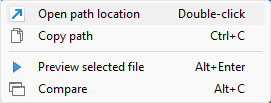
- Open path location - select this button to open the highlighted item's path using the Windows File Explorer.
- Copy path - select this button to copy the highlighted item's path to the clipboard. You can then paste the copied path in another application.
- Preview selected file - select this button to preview the highlighted file with the default app for its file type.
- Compare - This will show information about all the items in the same matching group as the highlighted item in, a dedicated window with visual preview for pictures. We are working on preview support for other file types. Below is a screenshop of the preview window.
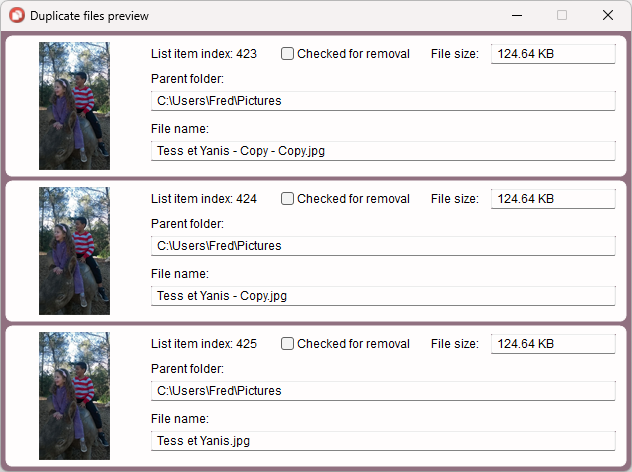
- The preview window lets you easily compare items and select the desired ones for removal. This window contains the following information for each item :
- A visual picture preview control with 128x128px maximum.
- The item's index in the list.
- A check box named Checked for removal, which lets you quickly select the corresponding item in the main list.
- The file's size, parent folder and file name.
The goal is to let you easily verify that the items in this group are really duplicates of each other.
Delete duplicates
Once you have selected the duplicates you want to delete, select the removal method, by ticking the desired radio button, in the right pane, under Removal options.
Move to the recycle bin - we recommend that you use this option. The selected files are moved to the recycle bin, allowing you to restore them later.
press Delete ticked files, in the right pane, and confirm, in the message prompt that follows.
Unduplicate will then start deleting the selected items from bottom to top. Items that are successfully deleted are removed from the list. In the end, a message box tells you how many items were successfully deleted.
Unduplicate's interface
.UnDuplicate's interface consists of a main window with a List-View control and a right side pane with several buttons and other controls.

The main window can be maximized, minimized, restored and resized.
To resize the window, click and drag its borders, or click and drag the resizer at the bottom-right corner.
To minimize, maximize, restore or close the window, use the dedicated system controls in the right end of the title bar.
At the bottom of the right pane, you have four links:
Powered by Carifred.com - this lint brings you to this website's home page.
Version 1.0.0.0 - this link takes you to the About Unduplicate page, where you can check whether you are using the latest version.
Go to the online help - this link brings you to this page..
The About tab
This tab displays information about the current DiskCopy version.
This tab also contains a few links pointing to pages on our website that we figured you might find useful.
