Heavy Folder Finder


Heavy Folder Finder's overview
Heavy Folder Finder is a simple application, intended to help you quickly find out why your storage device is full or what is using so much space in it.
If your disk drive is full, or is using much more space than it should, then this tool will surely help you fiur out why.
Current version: 1.0.0.0. Change log
Heavy Folder Finder scans your drive and displays the 50 largest folders found, and also the 50 biggest files, in a sepparate group. It lets you open the location of the delected file object in the File Explorer, which in turn allows tou to easily delete the desired files,
Please read the End User License Agreement for our software before using this program.
If you like this program and want to support its future development, you can donate by clicking the button below. Thanks in advance. Any amount is appreciated.
Heavy Folder Finder's interface
When you launch Heavy Folder Finder, the app displays its UI, similar to the screenshot below, and automatically starts scanning the current system drive.
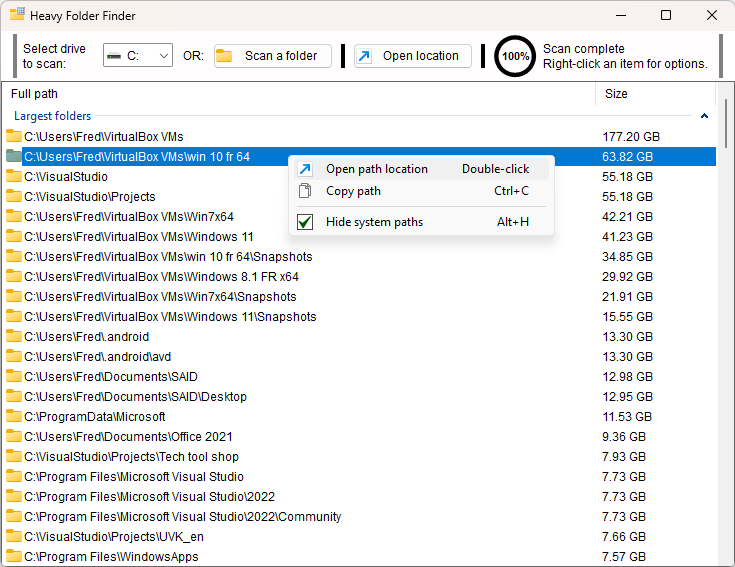
You can scan a different drive instead. Just select the desired drive letter to scan from the dropdown box at the top left corner..
You can also scan a folder instead. To do so, click Scan a folder, and indicate the root directory for the scan.
Once the list is populated, you can select any item, and click Open location to automatically jump to the location of the selected item using the Windows File Explorer.
If you right_click any item in the list, a menu with the following options is displayed:
Open path location - This performs the same action as clicking the Open location button, as explained above.
Copy path - Copies the selected path (file or folder) to the clipboard.
Hide system paths - If you select this option, known system folders are removed from the list.
